
Techstreat Solutions

Please fill out the form below if you have a plan or project in mind that you'd like to share with us.
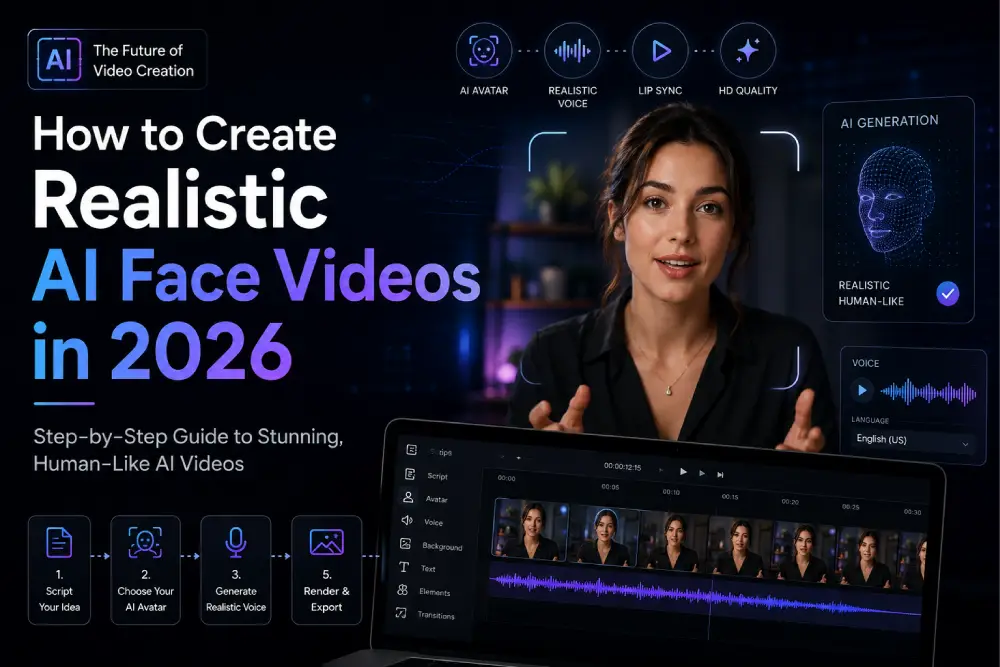
AI face videos are everywhere in 2026. You see them on Instagram Reels, YouTube Shorts, and even in TV ads. A few years back, this kind of video needed a big studio, expensive cameras, and a trained editor. Today, you can make a realistic AI face video on your phone in a few minutes.
But here's the problem. Most AI face videos still look “off.” The skin looks too smooth. The eyes don't blink right. The face changes shape a little every few seconds. This is called the uncanny valley effect, and it's the number one reason AI videos lose trust.
In this guide, we will show you how to create realistic AI face videos in 2026 the right way. We will keep things simple, skip the tech jargon, and give you real steps you can use today. By the end, you will know which tools to pick, how to avoid fake-looking results, and how to stay on the right side of the law.
An AI face video is a video where a computer program creates or changes a human face using artificial intelligence. There are two main types:
Both types use deep learning. This means the AI has studied millions of real faces and videos to learn how skin moves, how light falls on cheeks, and how muscles shift when someone smiles or talks.
A few reasons explain this boom:
The AI video generator market has grown fast, and it's expected to keep growing at a strong pace through this year as more industries adopt this technology for everyday content work.
Here is a simple comparison table of tools that creators are using right now. This is based on how they perform on real footage, not just perfect studio clips.
| Tool | Best For | Realism Level | Beginner Friendly? |
| Sora 2 | Physics, movement, lighting | Very High | Medium |
| Veo 3.1 | Cinematic look + built-in sound | Very High | Medium |
| Kling 3.0 | Human motion, hair, fabric | Very High | Medium |
| HeyGen | Talking avatars from text | High | Easy |
| Magic Hour | Face swap on real footage | High | Easy |
| DeepSwap | Handling tricky angles & light | High | Easy |
| Reface | Quick fun swaps on mobile | Medium | Very Easy |
Simple tip: No single tool is perfect for everything. Many creators now mix two tools — one for the base video and one for face polishing — to get the best final result.
You don't need to be a tech expert. Just follow these steps.
If you want a talking avatar for a business video, pick a tool like HeyGen. If you want to swap a face into an existing clip, pick a tool like Magic Hour or DeepSwap. If you want a full AI-made cinematic scene, use Sora 2, Veo 3.1, or Kling 3.0.
This is the step most people skip, and it's the most important one. Blurry photos, side angles, or bad lighting confuse the AI. Use a photo where:
If you're generating a video from text, don't overload your prompt. Describe:
Example: “A young woman smiles gently and turns her head slightly to the right, sitting near a window with warm afternoon light.”
Run the tool. Most platforms take anywhere from a few seconds to a couple of minutes to create the clip, depending on length and quality settings.
Before you post, look closely for these issues:
If you spot a problem, most tools let you touch up the face using a masking or inpainting tool. Instead of selecting the whole face, draw a small, tight box around just the problem area (like one eye or the mouth). Small, focused fixes work better than big, rough ones. You may need two or three small passes to get it right.
Once the face looks natural, export the video. Add captions, background music, or branding before publishing.
| Mistake | Why It Looks Fake | Quick Fix |
| Using a blurry source photo | AI has less detail to work with | Use a sharp, front-facing photo |
| Writing a very long, complex prompt | AI gets confused and mixes ideas | Keep prompts short and clear |
| Ignoring lighting mismatch | Face lighting doesn't match the scene | Pick source photos with similar lighting to your target video |
| Skipping the review step | Small glitches get missed | Always watch the full clip before posting |
| Using low-resolution export settings | Video looks soft or pixelated | Export in HD or higher when possible |
This part matters a lot, so read it carefully.
Always check the rules in your country before publishing AI face content, especially for ads or public campaigns.
Creating realistic AI face videos in 2026 is no longer hard or expensive. The tools have become smart, fast, and beginner-friendly. But the real secret isn't just picking a fancy tool — it's using clear photos, simple prompts, and taking a few extra minutes to check and fix small glitches before you hit publish.
Start with a short test clip, learn what your chosen tool does well, and build from there. With a little practice, your AI face videos can look sharp, natural, and ready for any platform.
Found this guide helpful? Explore more AI video and content creation guides on Techstreat Solutions blog to stay ahead of the latest tools and trends.